PowerShell Can Put Pictures in Your Terminal with SIXEL
PowerShell normally sends text and objects to a terminal. This experiment sends an image.
Out-Sixel -Path ./sixel-demo.svg -Width 480
Instead of opening Preview or a browser, the command decodes the SVG, converts it into a palette, and writes a stream of terminal escape sequences. iTerm2 interprets those sequences and paints the image directly between the command and the next prompt.
This is mostly for fun. It is also a useful reminder that a terminal is a protocol endpoint, not merely a grid of characters.
macOS 26.6.2, iTerm2 3.6.11, PowerShell 7.6.1, Apple Silicon.
The direct iTerm2 session is the supported path in this article. No tmux or screen sits between PowerShell and the terminal.
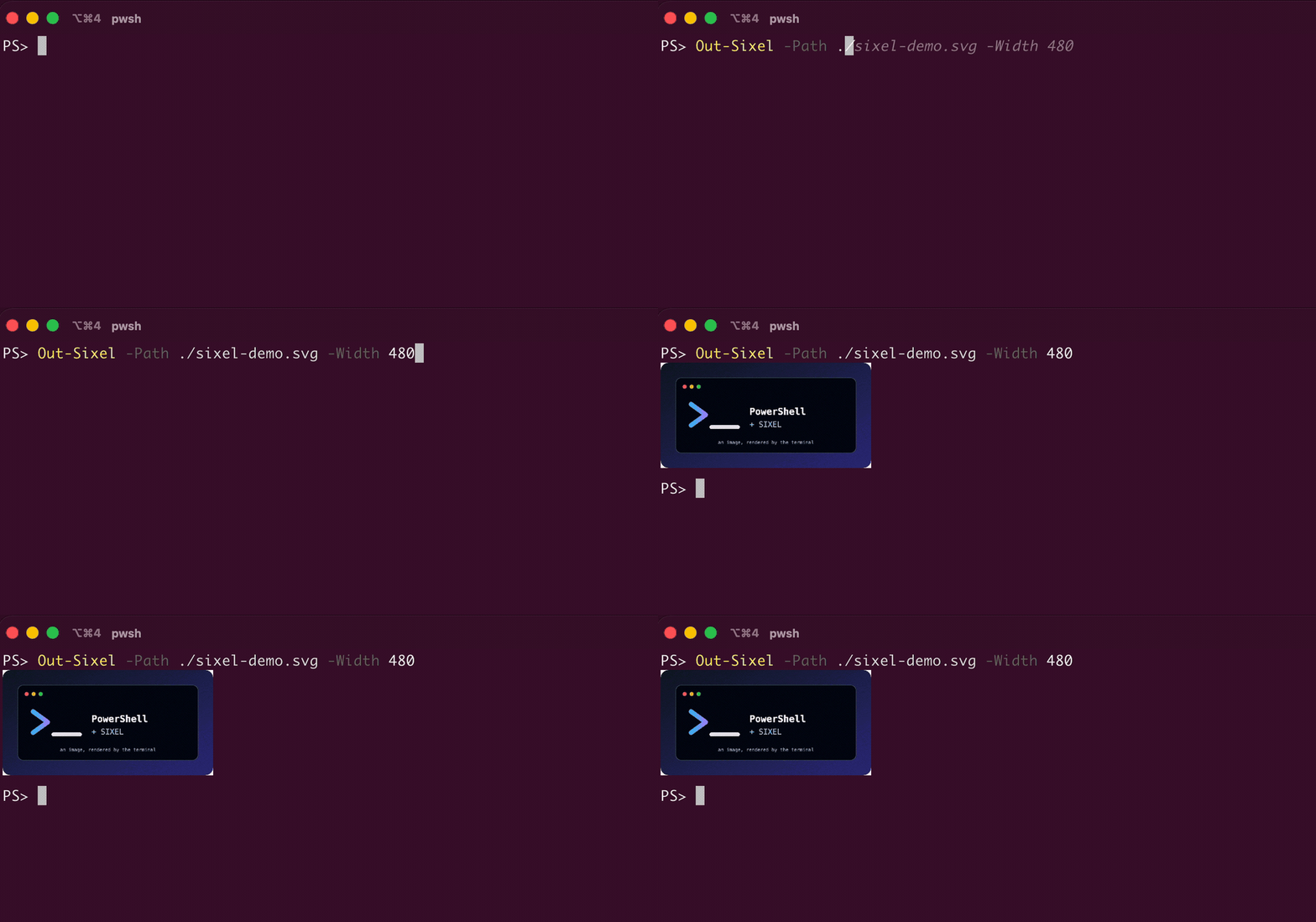
The recording above is a real iTerm2 session. The command reads the SVG, writes SIXEL escape sequences to the terminal, and returns to the PowerShell prompt after iTerm2 renders the image.

The image above is the source file used in the recording.
What is SIXEL?
SIXEL is a bitmap graphics format originally used by DEC terminals and printers. The name comes from its basic unit: a character represents a vertical group of six pixels.
A SIXEL image is still text from the process’s point of view. It begins with a device-control escape sequence, contains a palette and encoded pixel bands, and ends with a string terminator. A compatible terminal recognizes that stream as graphics rather than printable characters.
That old design has one property that remains attractive: the image travels over the same channel as terminal output. There is no separate window, web server, or GUI API.
The PowerShell experiment
The command is part of an experimental C# port of libsixel. The repository contains a small PowerShell module whose public surface is a compiled cmdlet:
Install the exact LibSixel.PowerShell 0.2.0-beta2 prerelease used by this article from PowerShell Gallery:
Install-Module `
    -Name LibSixel.PowerShell `
    -RequiredVersion '0.2.0-beta2' `
    -AllowPrerelease `
    -Scope CurrentUser

Import-Module LibSixel.PowerShell
Then confirm that PowerShell can see the compiled cmdlet:
Get-Command Out-Sixel
The cmdlet accepts PNG, JPEG, and SVG files:
Out-Sixel -Path ./photo.png
Out-Sixel -Path ./photo.jpg
Out-Sixel -Path ./diagram.svg
Large images should be resized before encoding. -Width and -Height accept pixel dimensions; specifying only one preserves the aspect ratio:
Out-Sixel -Path ./photo.jpg -Width 480
Out-Sixel -Path ./diagram.svg -Height 260
SIXEL uses a limited palette. The default is 256 colors, but a smaller palette can reduce the output considerably:
Out-Sixel -Path ./photo.jpg -Width 480 -Colors 64
The result will not compete with a normal image viewer. That is part of the charm: the terminal applies color quantization and dithering, giving photographs a slightly retro character while diagrams usually remain crisp.
Render an SVG without creating a file
Out-Sixel also recognizes SVG content arriving through the pipeline. This makes a self-contained demo possible:
$svg = @'
<svg xmlns="http://www.w3.org/2000/svg" width="640" height="240">
  <defs>
    <linearGradient id="g" x1="0" x2="1">
      <stop offset="0" stop-color="#38bdf8" />
      <stop offset="1" stop-color="#8b5cf6" />
    </linearGradient>
  </defs>
  <rect width="640" height="240" rx="24" fill="#111827" />
  <text x="320" y="105" text-anchor="middle"
        font-family="monospace" font-size="38" fill="url(#g)">
    PowerShell + SIXEL
  </text>
  <text x="320" y="160" text-anchor="middle"
        font-family="monospace" font-size="20" fill="#cbd5e1">
    no browser required
  </text>
</svg>
'@

$svg | Out-Sixel -Width 480
This is an entertaining way to display a generated diagram or status card. It is not a replacement for structured PowerShell output: once data becomes pixels, the pipeline can no longer filter or sort it.
What happens inside the command?
The path from a file to the terminal is deliberately small:
PNG / JPEG / SVG
        |
        v
SkiaSharp decode or SVG rasterization
        |
        v
RGBA pixel buffer
        |
        v
palette selection and dithering
        |
        v
SIXEL escape sequence
        |
        v
iTerm2 renders the pixels
SkiaSharp decodes PNG and JPEG inputs. Svg.Skia rasterizes SVG into the same RGBA representation. The ported libsixel code then selects a palette, applies dithering, and writes the SIXEL device-control string through Host.UI.
The command can return that string instead of writing it to the terminal:
$sixel = Out-Sixel -Path ./diagram.svg -Width 480 -AsString

[int][char]$sixel[0]
[int][char]$sixel[1]
The first two values are 27 and 80: ESC followed by P, the beginning of a device-control string.
Exactly where does it work?
Terminal support matters more than the shell prompt. The same pwsh command can display an image in one terminal and produce garbage in another.
| Environment | Status for this experiment |
|---|---|
| iTerm2 3.3 or newer on macOS | Supported. This article was tested with iTerm2 3.6.11. |
| PowerShell 7.4 or newer | Required by the current net8.0 module build. This article was tested with PowerShell 7.6.1. |
| Windows Terminal 1.22 or newer | SIXEL is supported by the terminal, and the module includes Windows Skia native assets. I have not tested this combination yet—please try it and report what you find. |
| Windows PowerShell 5.1 | Not supported. It cannot load this net8.0 module. |
| macOS Terminal.app and the VS Code integrated terminal | Not tested and not claimed as supported here. |
| tmux and screen | Outside the supported path. A multiplexer may filter the escape sequence or require its own SIXEL configuration. |
iTerm2 has supported SIXEL since its 3.3 release, and recent releases continue to fix SIXEL decoding. Windows Terminal introduced support in version 1.22. These version boundaries are about the terminal emulator; the module independently requires a modern PowerShell runtime.
Windows Terminal readers: please try this
I deliberately kept the Windows claim separate from the macOS result. The renderer exists in Windows Terminal, and the module packages the Windows Skia native library, but a real end-to-end run is more valuable than an inference from two codebases.
If you have Windows Terminal 1.22 or newer and PowerShell 7.4 or newer, try:
$PSVersionTable.PSVersion

Get-AppxPackage Microsoft.WindowsTerminal |
    Select-Object Name, Version

Install-Module -Name LibSixel.PowerShell -AllowPrerelease -Scope CurrentUser
Import-Module LibSixel.PowerShell

# Use the inline $svg sample from the earlier section.
$svg | Out-Sixel -Width 480
If it works, capture the terminal version, PowerShell version, architecture, and a screenshot. If it does not, the failure mode is just as useful: dependency loading, raw escape text, a blank area, or incorrect cursor placement point to different layers.
Limitations worth keeping
This is an experiment, not a new universal image API for PowerShell.
- SIXEL palettes contain at most 256 colors.
- Large images produce large terminal streams and can be slow over remote connections.
- Image placement and cursor behavior vary between terminal implementations.
- Multiplexers add another protocol layer and need separate testing.
- SVG text depends on fonts available to Skia on the machine doing the rasterization.
- The module is an experimental prerelease rather than a stable terminal graphics API.
Those constraints keep the example honest, but they do not make it less fun. A generated architecture diagram, chart, QR code, or build badge appearing directly in a PowerShell session is still a delightful result from a protocol designed decades ago.
Takeaway
The surprising part is not that PowerShell can read an image. The surprising part is that the ordinary terminal output channel can carry the image all the way to the screen.
On macOS with iTerm2, that path works today:
PowerShell -> SIXEL -> iTerm2 -> pixels
Windows Terminal should provide the same path on Windows. If you test it, send the result. One successful screenshot—or one interesting failure—would make a useful follow-up to this little experiment.